How to import a floor plan for installation design
Prepare a background plan, floors and scale in EH Designer before placing devices.
Read guide →Getting started · guide for installers
Find a model in the EH Designer catalogue, drag it onto the floor plan and check its settings.
Prepared by EnergyHouse · Updated: 19 October 2026
The catalogue connects a symbol on the drawing with a specific product. This matters when preparing quotations: two similar-looking devices may have different specifications and prices. Search by the exact product reference if a model has already been agreed.
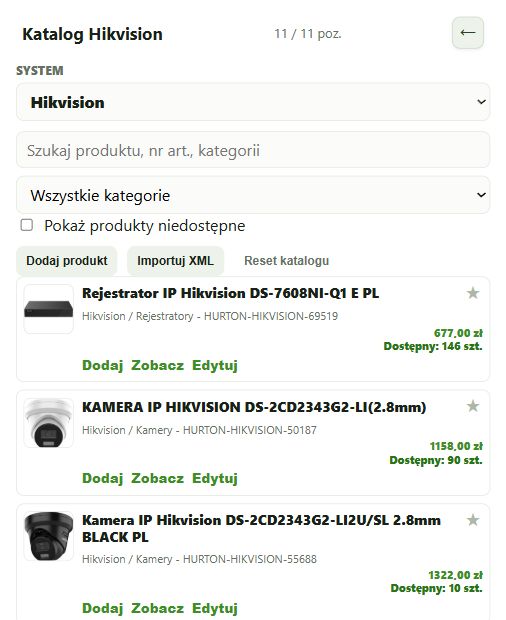
Keep the catalogue visible beside the drawing. Select the system, narrow the category and drag a product to its installation position, or use the selection button. Check its details after placing it. If no results appear, clear the previous search and check the category filter before concluding that the product is missing.
Search for the exact model in the appropriate system or manufacturer’s catalogue.
Prices and stock levels come from the catalogue’s data source. Check current availability before purchasing.
Click a symbol on the plan or an item in the list to open its details.
Export a JSON project backup before changing many objects.
Open EH Designer on a computer with a mouse. Start with one room or part of the installation, review the result and expand your project. For available plans, see pricing.
Create an EH Designer accountPrepare a background plan, floors and scale in EH Designer before placing devices.
Read guide →Define rooms, assign devices and check labels before generating installation documentation.
Read guide →Prepare a Loxone installation in EH Designer: rooms, devices, wiring, distribution board and quotation.
Read guide →