How to import a floor plan for installation design
Prepare a background plan, floors and scale in EH Designer before placing devices.
Read guide →Getting started · guide for installers
Define rooms, assign devices and check labels before generating installation documentation.
Prepared by EnergyHouse · Updated: 19 October 2026
Room names and device identifiers connect discussions with the client to the plan and materials list. When several installers work on the same project, consistent references reduce uncertainty about which installation point a particular item describes.
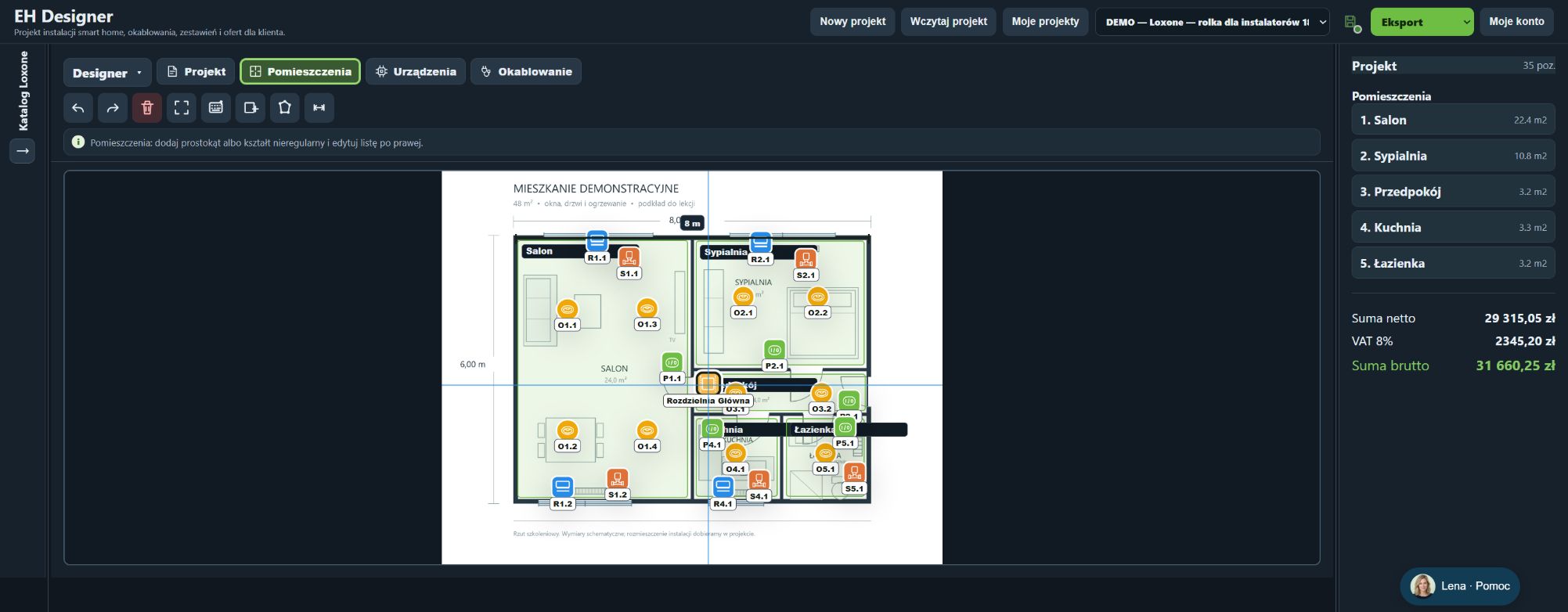
Define room boundaries and names before placing devices. After moving an object between rooms, check its room assignment and description. Before exporting, review crowded parts of the drawing: labels should not obscure doors or other devices.
Room outlines help assign devices to the correct rooms.
Click a symbol on the plan or an item in the list to open its details.
Export a JSON project backup before changing many objects.
Layers control what you see on the plan without removing devices from the project.
Hiding a layer does not exclude its items from pricing. Change the estimate scope separately.
Open EH Designer on a computer with a mouse. Start with one room or part of the installation, review the result and expand your project. For available plans, see pricing.
Create an EH Designer accountPrepare a background plan, floors and scale in EH Designer before placing devices.
Read guide →Find a model in the EH Designer catalogue, drag it onto the floor plan and check its settings.
Read guide →Prepare a Loxone installation in EH Designer: rooms, devices, wiring, distribution board and quotation.
Read guide →