How to import a floor plan for installation design
Prepare a background plan, floors and scale in EH Designer before placing devices.
Prepared by EnergyHouse · Updated: 19 October 2026
A good background plan reduces revisions later. Choose a legible drawing with the current wall and door layout. If several drawing revisions are available, agree which one is current and name the project so that it can be identified easily.
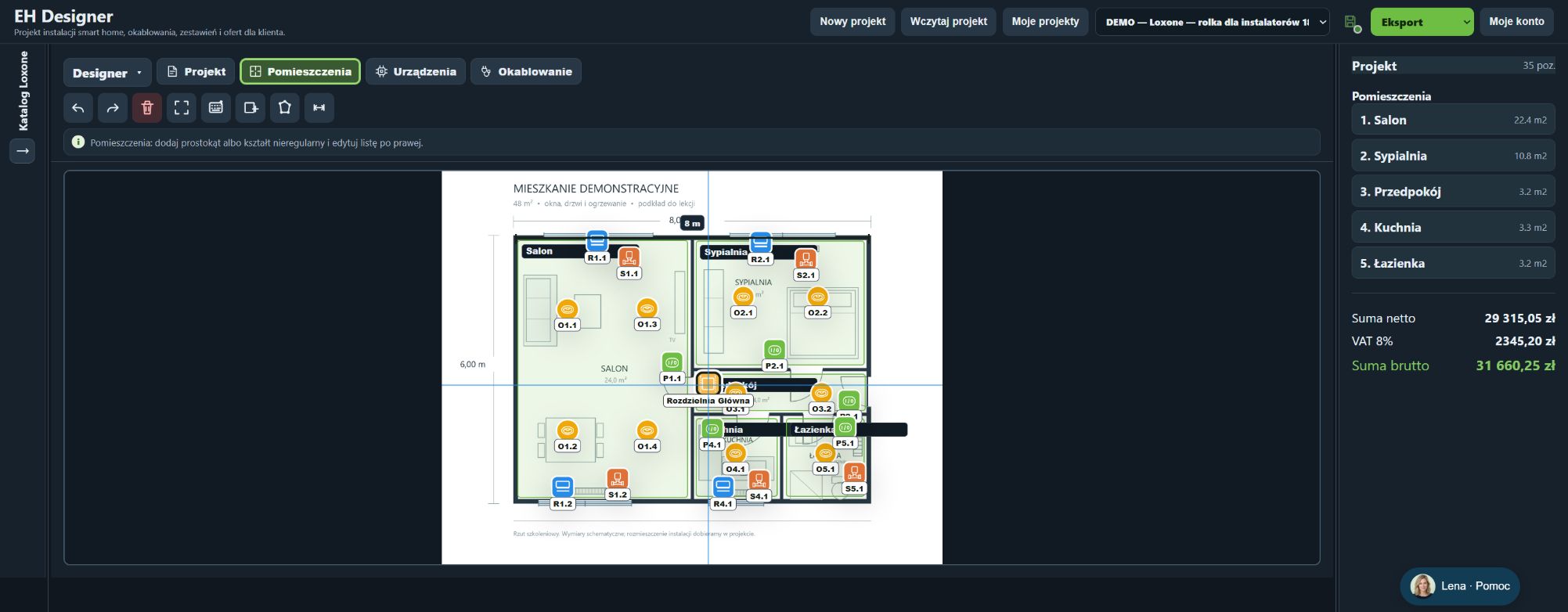
Demonstration Loxone project with rooms and devices in EH Designer. Screenshot of the Polish interface. Demonstration project; appearance and prices may change with updates. Click to enlarge.
Workflow
The wizard supports starting from a PDF or image, DWG/DXF drawing or Google Maps background. After import, check the selected floor and calibrate the scale using a known dimension. Do not assume that every image preserves the original scale: photographs can be distorted and printed drawings may have been resized.
Lena guides you through the project step by step, opens the appropriate view and highlights the tools. The order depends on your selected scope.
The option to design with Lena is selected by default in the New project form, including for existing users. A new account’s first project always starts with Lena.
For later projects, you can deselect Lena to work independently. Your choice is saved to your account; selecting her again enables the wizard for subsequent projects. In local mode, the browser remembers the choice.
Add a PDF, image, Google Maps background or DWG/DXF file. Once the background is added, the wizard moves to scope selection. A background is required to start the project.
Choose the pricing scope, installation types and manufacturers. Rack cabinets are under Installations and equipment. For Smart Home, also choose the functions you need.
Click “Show me the tool”. Lena opens the appropriate view and highlights the actual button. Activate it yourself to learn where it is.
The wizard’s placement tool remains active until you right-click. On a touchscreen, use the button to finish placing objects.
Place each distribution board or rack cabinet only once. A later step adds equipment to the existing cabinet. For racks, Lena explains automatic sizing, spare capacity and fixed-model selection.
Marking a step as complete moves you forward; choosing to do it later marks it as deferred. Pausing the wizard preserves your progress.
To resume, open Floor plan → Project and click Lena’s face icon next to Google Maps to open the project wizard. Use the voice controls to enable or mute narration, and Play again to repeat an instruction.
Voice is enabled by default for the first project unless this browser remembers a previous mute setting. If the browser blocks audio, click Play again. The wizard and the “Lena — Help” chat are separate features. The wizard summary does not certify the technical correctness of the installation.
The scale determines length, area and cable route measurements.
Go to Floor plan → Project → Set floor plan scale.
Select both ends of a segment with a known length.
Enter its actual length. Check the result against another known dimension.
Repeat the calibration for each floor.
Zooming does not change the project scale.
Try it in your own project
Open EH Designer on a computer with a mouse. Start with one room or part of the installation, review the result and expand your project. For available plans, see pricing.