CCTV hard drive selection — information needed for the design
Check recording assumptions before selecting storage and finalising a CCTV estimate.
Read guide →CCTV · guide for installers
Prepare a clear CCTV layout with camera directions, fields of view and a review of blind spots.
Prepared by EnergyHouse · Updated: 19 October 2026
For a demonstration house, four corner positions and a separate entrance camera can be a useful starting point. This is a discussion example, not a universal camera count. The final layout depends on building geometry, obstructions and the purpose of each view.
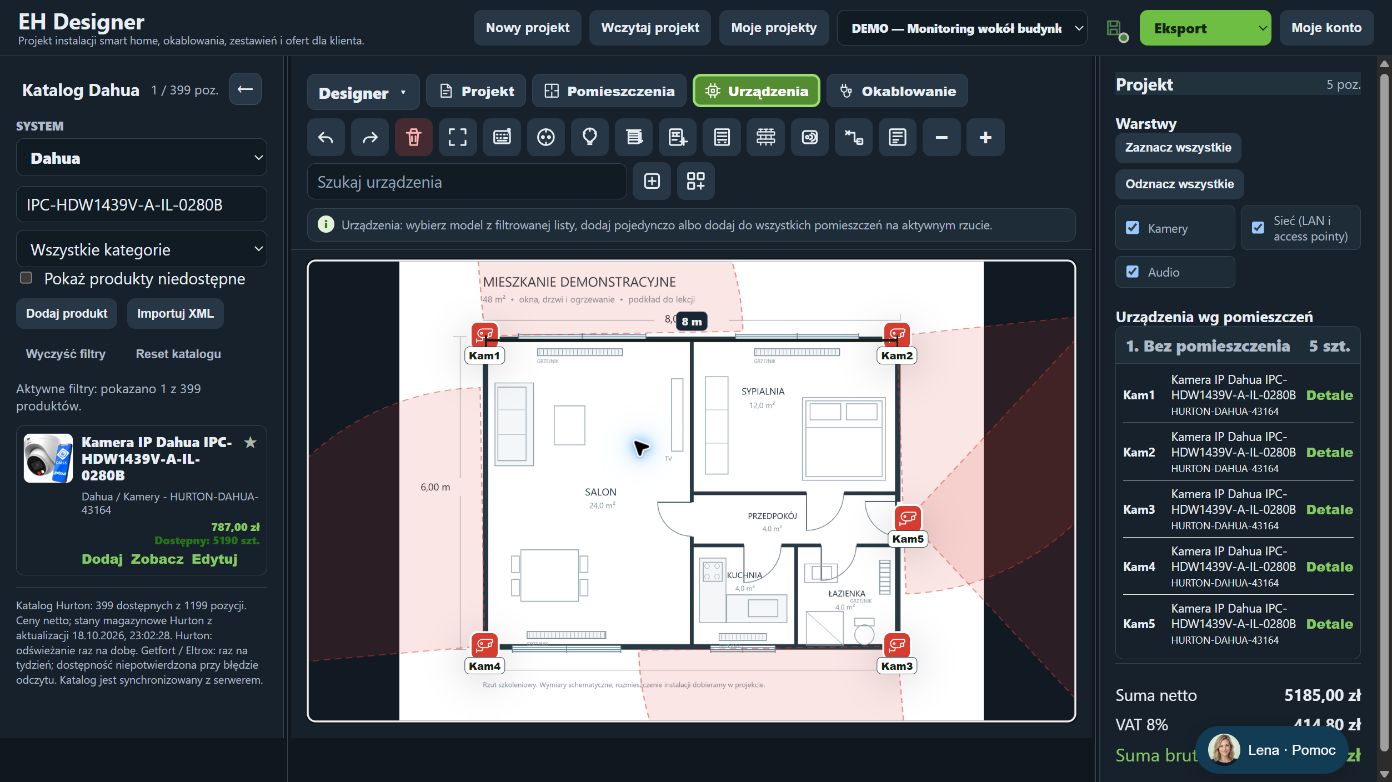
Aim corner cameras along the external walls, outside the building outline. Select a camera and rotate its field using the handle while observing its position relative to the wall. An entrance camera can face directly towards the entrance area. Do not accept a layout just because coloured fields cover the drawing: check that no camera points into a wall. The illustration shows five Dahua cameras in a demonstration project.
The area shown on the plan helps assess the device’s direction and coverage.
The coverage drawing is a design aid. Range and geometry must match the specific model’s documentation and installation conditions.
Layers control what you see on the plan without removing devices from the project.
Hiding a layer does not exclude its items from pricing. Change the estimate scope separately.
The route type defines the device’s connection destination.
Open EH Designer on a computer with a mouse. Start with one room or part of the installation, review the result and expand your project. For available plans, see pricing.
Create an EH Designer accountCheck recording assumptions before selecting storage and finalising a CCTV estimate.
Read guide →Prepare a Loxone installation in EH Designer: rooms, devices, wiring, distribution board and quotation.
Read guide →Plan an installation using Nice products, organise device models and prepare a materials list for your client.
Read guide →