Designing a Loxone installation online — from floor plan to documentation
Prepare a Loxone installation in EH Designer: rooms, devices, wiring, distribution board and quotation.
Read guide →Network and rack · guide for installers
Place equipment in a rack, add a patch panel and power strip, and review occupied rack units.
Prepared by EnergyHouse · Updated: 19 October 2026
Choose a rack based on the equipment and connections, not only the camera count. List the recorder, switch, patch panel, power strip and devices that require a shelf. Allow space for cable management and future changes.
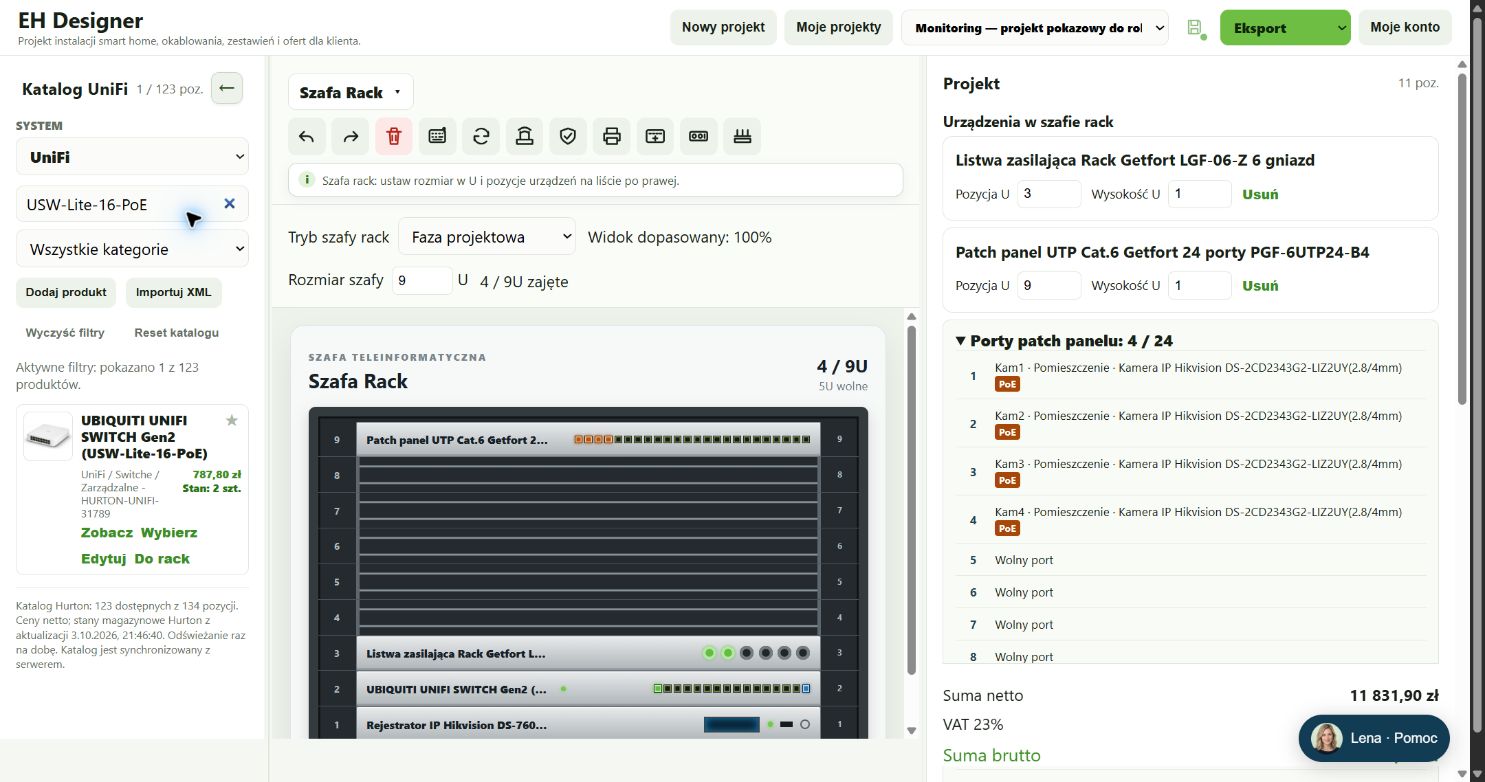
In EHD, switch to the Rack view, set its size and add products. Assign rack unit positions, then review ports and collisions. In addition to height, check equipment depth and mounting requirements in manufacturer specifications. An available rack unit does not guarantee that a device physically fits the chosen enclosure.
The U size specifies the device’s mounting height in the rack.
Port counts and power requirements depend on the specific device model.
Open EH Designer on a computer with a mouse. Start with one room or part of the installation, review the result and expand your project. For available plans, see pricing.
Create an EH Designer accountPrepare a Loxone installation in EH Designer: rooms, devices, wiring, distribution board and quotation.
Read guide →Plan an installation using Nice products, organise device models and prepare a materials list for your client.
Read guide →Plan a UniFi network, organise port assignments and design the equipment rack in EH Designer.
Read guide →