Cabling design — routes, lengths and cable allowances
Assign cables to devices, organise routes and review lengths before preparing the estimate.
Read guide →Documentation · guide for installers
Prepare circuits and the distribution board layout in EH Designer, then check the data before export.
Prepared by EnergyHouse · Updated: 19 October 2026
Develop the distribution board from the devices and circuits shown on the plan. Start by organising load names and assignments so that each protective device description can be traced to the correct part of the installation.
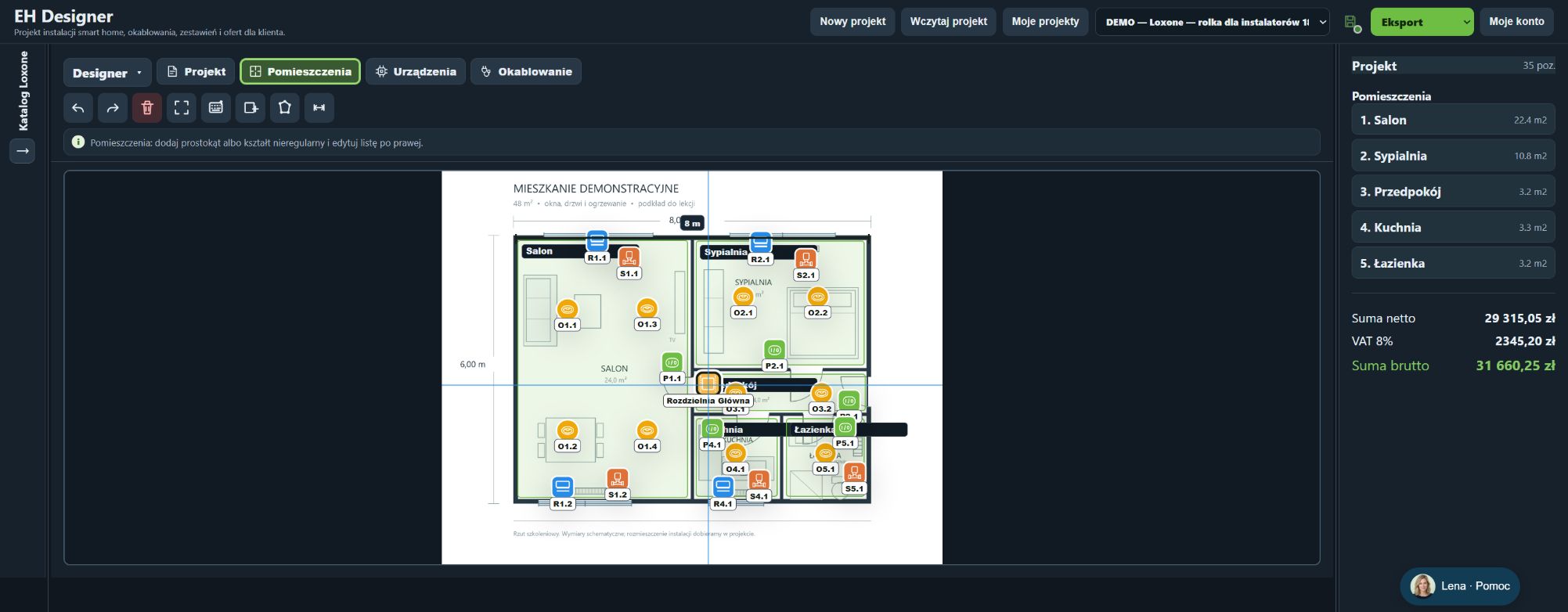
Before selecting protective devices, complete the required supply connection data and installation conditions. A device appearing in the board is not proof that its selection is correct. The design requires verification by a suitably qualified person. Prepare a clear view for client discussions and verified documentation for installation.
Add electrical objects using the tools in the Devices tab.
A double LAN outlet occupies one frame position but requires two network connections.
The distribution board view is used to arrange modules and prepare documentation.
Automatic selection is preliminary. The installation and protective devices must be checked by a suitably qualified person.
The project PDF documents the plan and selected installations.
Do not change the project while the export is being generated. If the export fails, try a smaller selection of pages and report the problem with the settings you used.
Open EH Designer on a computer with a mouse. Start with one room or part of the installation, review the result and expand your project. For available plans, see pricing.
Create an EH Designer accountAssign cables to devices, organise routes and review lengths before preparing the estimate.
Read guide →Turn devices on a plan into material and labour costs and a clear PDF quotation in EH Designer.
Read guide →Prepare installation drawings and schedules in EH Designer, then review the files before delivery.
Read guide →